

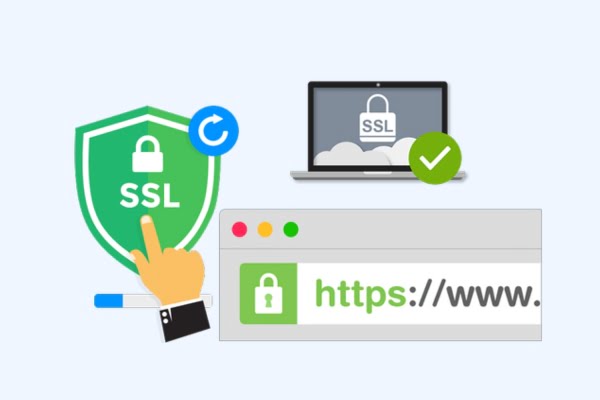
Website security is paramount in today’s digital landscape, and installing an SSL certificate is a crucial step towards protecting your visitors’ data. In this article, we will guide you through the process of installing an SSL certificate using cPanel and show you how to force HTTPS on your website to ensure a secure browsing experience.
Installing an SSL Certificate using cPanel:
- Log in to your cPanel account provided by your hosting provider.
- Navigate to the “Security” or “SSL/TLS” section in cPanel.
- Look for the “Install an SSL Certificate” or “Manage SSL sites” option and click on it.
- Copy and paste the SSL certificate, private key, and CA bundle (if provided) into the respective fields.
- Click on the “Install” or “Save” button to complete the SSL certificate installation process.
Forcing HTTPS on Your Website:
- Access the File Manager in cPanel.
- Open the public_html directory (or the directory where your website files are located).
- Look for the .htaccess file. If it doesn’t exist, create a new file and name it “.htaccess”.
- Right-click on the .htaccess file and select “Edit” or “Code Edit”.
- Add the following lines of code at the beginning of the file:
RewriteEngine On
RewriteCond %{HTTP_HOST} yourdomain.com [NC]
RewriteCond %{SERVER_PORT} 80
RewriteRule ^(.*)$ https://yourdomain.com/$1 [R,L]
Replace “yourdomain.com” with your actual domain name.
6. Save the changes and exit the file editor.
Conclusion:
By following these steps, you can easily install an SSL certificate using cPanel and enforce HTTPS on your website. This ensures that your visitors’ data is encrypted and secured, building trust and enhancing your website’s credibility. Remember to periodically renew your SSL certificate and regularly check for any SSL-related issues to maintain optimal security.